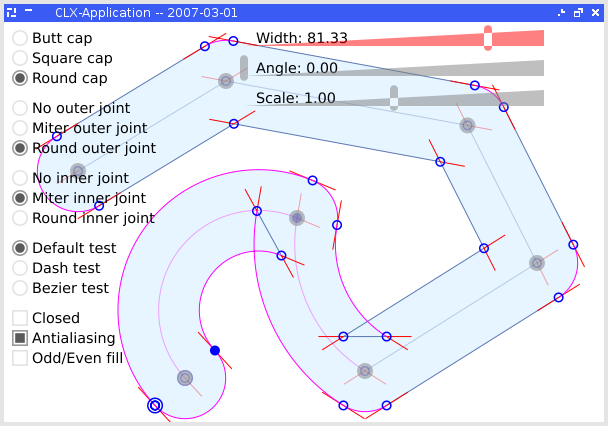
*** CL-VECTORS *** = Summary = `cl-vectors` is a pure Common Lisp project which include two libraries, `cl-aa` and `cl-paths` to rasterize and manipulate vectorial paths. All the pictures in this documentation were rendered with this project. Note that the library cover rasterization but not bitmap rendering (yet). It's up to the user to provide the necessary part, specific to the image where the rendering must occur (so that you can use any image format you like.) However, an example is provided in the file `aa-misc.lisp`, with basic stuff to save the resulting image to `pnm`. The latest version can be found at [files/cl-vectors-0.1.3.tar.gz]. [download.png files/cl-vectors-0.1.3.tar.gz] Installing this package with ADSL-Install is also possible with `(asdf-install:install 'cl-vectors)`. You can contact me at [frederic@jolliton.com mailto://frederic@jolliton.com]. Don't hesitate to ask for help or to send comments and suggestions. More elaborate image support is planned, including filling polygons with gradients. See examples [here gradient-example.png] and [here gradient-example2.png]. = ChangeLog = * 2007-04-16 Files updated to be more ASDF-install friendly. Added GPG signature to each [files files/]. You can find my key [here http://projects.tuxee.net/key]. It contains: -=-=- pub 2048R/63B68105 2007-04-16 Key fingerprint = AABA B388 C437 BFAE D393 6D25 1A3E F946 63B6 8105 uid Frederic Jolliton (Package signature) -=-=- Don't hesitate to contact me for checking the fingerprint. * 2007-03-14 [Version 0.1.3 files/cl-vectors-0.1.3.tar.gz] * Extended `aa` protocol to provide better control over the resulting state. For example, it allows to sweep only a rectangular zone. * Fixed filter-distinct. * Added `aa-bin`, a specialized version of `aa` for rendering non-antialiased polygons. Included in the `cl-aa` system definition. * 2007-03-08 [Version 0.1.2 files/cl-vectors-0.1.2.tar.gz] * Fixed circle path creation. * Fixed dash transformation for paths including arcs. * 2007-03-06 [Version 0.1.1 files/cl-vectors-0.1.1.tar.gz] * Fixed `cl-aa.asd` system definition. * 2007-03-06 [Version 0.1 files/cl-vectors-0.1.tar.gz] * Initial release = Tutorial = (*This section is unfinished.*) The `cl-aa-misc` package provides some functions for creating images and performing very basic operation on them (loading and saving them.) It is not intended to be used outside of this tutorial. Images can only be 24bits RGB (with 8 bits integer per component.) The `show-image` function used in this tutorial expect a path to an external program to be specified in `aa-misc:*external-viewer*`. This program will be used to display PNM pictures. Under Unix, `xv` may be a good choice, and it is the default. Assuming you're using an implementation which use ASDF with `require`, you must load `cl-aa-misc` and `cl-vectors` as follow: --- Systems required for this tutorial --- -=-=- (require 'asdf) (require 'cl-aa-misc) (require 'cl-vectors) -=-=- +++ displaying a blank image +++ This first bit of code create a blank image and display it. --- create and display a blank image --- -=-=- (let ((image (aa-misc:make-image 300 200 #(255 255 255)))) (aa-misc:show-image image)) -=-=- This creates a `300x200` images with the white color. The color is specified with a 3-elements array with values between 0 and 255. Note: Actually the image is just an Common Lisp array of dimensions `(300 200 3)` with `(unsigned-byte 8)` elements. To save the image use `(aa-misc:save-image filename image format)` where `format` must be `:pnm` since nothing else is supported. +++ drawing some pixels +++ Given that, if we have to draw several pixels of the same color but with various opacity, we can build a function closure with the `aa-misc:image-put-pixel` function. Such a function will be necessary to render antialiased polygons. The following example draw 4 pixels with various opacity. --- draw some pixels with various opacity --- -=-=- ;;; Note that the image size is 4x3. Zoom it when it is displayed. (let* ((image (aa-misc:make-image 4 3 #(255 255 255))) (put-pixel (aa-misc:image-put-pixel image #(0 0 0)))) (funcall put-pixel 2 1 256) ; full opacity (funcall put-pixel 1 2 128) ; half opacity (funcall put-pixel 3 2 192) ; 3/4 opacity (funcall put-pixel 0 1 0) ; null opacity, nothing drawn (aa-misc:show-image image)) -=-=- +++ rendering a polygon +++ Now, something more interesting, we want to draw an antialiased polygon. At the lowest level of this library, to draw some polygons we must create an "AA" state for the rasterizer, describe the polygon to draw, then draw the result. This can be done as follow: --- draw a black triangle with antialiasing --- -=-=- (let ((state (aa:make-state))) ; create the state (aa:line-f state 200 50 250 150) ; describe the 3 sides (aa:line-f state 250 150 50 100) ; of the triangle (aa:line-f state 50 100 200 50) (let* ((image (aa-misc:make-image 300 200 #(255 255 255))) (put-pixel (aa-misc:image-put-pixel image #(0 0 0)))) (aa:cells-sweep state put-pixel) ; render it (aa-misc:show-image image))) -=-=- which produces: [pic-tut1.png] The algorithm computed the coverage of all the pixels involved to describe the triangle. The pixels inside the triangle are covered completly, and thus call our `put-pixel` function with 256 for the alpha value. For the pixels outside, the alpha is 0. For the pixels along the borders of the triangle it is between these 2 values, hence providing antialiasing information. Note that the triangle was drawn clockwise. If we now draw another triangle overlapping the first but counter-clockwise, this create a hole, because the algorithm which compute pixel coverage will have cancelled the overlapping zone. The alpha value will be 0 at the intersection because the first triangle produces alpha of 256 while the counter-clockwise triangle produces alpha of -256. FIXME: Find a better explanation. --- 2 overlapping triangles --- -=-=- (let ((state (aa:make-state))) ; create the state ;; the 1st triangle (aa:line-f state 200 50 250 150) ; describe the 3 sides (aa:line-f state 250 150 50 100) ; of the first triangle (aa:line-f state 50 100 200 50) ;; the 2nd triangle (aa:line-f state 75 25 10 75) ; describe the 3 sides (aa:line-f state 10 75 175 100) ; of the second triangle (aa:line-f state 175 100 75 25) (let* ((image (aa-misc:make-image 300 200 #(255 255 255))) (put-pixel (aa-misc:image-put-pixel image #(0 0 0)))) (aa:cells-sweep state put-pixel) ; render it (aa-misc:show-image image))) -=-=- which produces: [pic-tut2.png] The function `put-pixel` is only called for the pixels on the border of the various polygons. It is also called for the interior of the polygons, but we can provide an optimized version of the function in this case which can handle a run of pixels of the same opacity. See the section "cl-aa" for more information about that. Note that we could not have drawn the triangles with different color (one red and one blue for example.) Since it is happenning in a single state, everything is rendered with a specific filling method. As we will see later in this tutorial (yet to be written..), this library provides some way to fill polygon with gradient (radial or linear) and with textures (either from picture or from previously rendered polygons.) To draw 2 triangles with different colors, we must render them like this: --- red and blue triangles --- -=-=- (let ((state1 (aa:make-state)) (state2 (aa:make-state))) ;; the 1st triangle (aa:line-f state1 200 50 250 150) ; describe the 3 sides (aa:line-f state1 250 150 50 100) ; of the first triangle (aa:line-f state1 50 100 200 50) ;; the 2nd triangle (aa:line-f state2 75 25 10 75) ; describe the 3 sides (aa:line-f state2 10 75 175 100) ; of the second triangle (aa:line-f state2 175 100 75 25) (let ((image (aa-misc:make-image 300 200 #(255 255 255)))) (aa:cells-sweep state1 (aa-misc:image-put-pixel image #(255 0 0))) (aa:cells-sweep state2 (aa-misc:image-put-pixel image #(0 0 255))) (aa-misc:show-image image))) -=-=- which produces: [pic-tut3.png] But using some special way to handle the alpha value (with a specific `put-pixel` function), we could obtains the colored version with the hole at the same time by testing the sign of the alpha value (which is normally considered only for its absolute value) to decide to choose between the 2 colors. And this is not the only way to achieve that. = Packages and system definition = | *System..* | *..provides packages..* (with nicknames) | *..and depends on* | | `cl-aa.asd` | `net.tuxee.aa` (`aa`) | | | | `net.tuxee.aa-bin` (`aa-bin`) | | | `cl-aa-misc.asd` | `net.tuxee.aa-misc` (`aa-misc`) | | | `cl-paths.asd` | `net.tuxee.paths` (`paths`) | | | `cl-paths-ttf.asd` | `net.tuxee.paths-ttf` (`paths-ttf`) | `cl-paths` and `zpb-ttf` | | `cl-vectors.asd` | `net.tuxee.vectors` (`vectors`) | `cl-aa` and `cl-paths` | I realize that the system definition names and package nicknames may be too generic, and may possibly clash with existing projects. I might change them in the future (especially if I get report of such clashes.) = cl-paths = == Limitations == The path library is very basic. Paths can be described by 4 types of interpolations (as described later), including Bezier curves of any degree, and Catmull-Rom splines. Some path transformations are included. There is stroking, dashing and clipping transformations available. But none of these transformation are implemented perfectly, in the sense that algorithms used in the library are rather simples. This was coded in some weeks as a way to exploit the `cl-aa` part of the library in a convenient way. == Dictionary == *Important*: We consider a coordinate system with X axis being positive on the left of the origin and Y axis being positive to the bottom of the origin, like for a screen with top-left pixel with `(0,0)` coordinate. This is important because sometimes I use term such as "left", "top" or "clockwise". If you intend to use another coordinate system, make sure to take care of that. A path is described by a serie of knots joined by various type of interpolations. The library support 4 types of interpolation: * `straight-line`, * `arc` (SVG style), * `bezier` curves of any degrees, * `catmull-rom`. See the constructor for each type of interpolation for more details. Each interpolations are implemented by a class and a set of CLOS methods. This way, it is easy to implement new interpolation scheme inside the library. A path can be of 3 types: * `:open-polyline` * `:closed-polyline` * `:polygon` (a implicitly closed and filled area.) Paths of types `:closed-polyline` and `:polygon` are always closed implicitly by a straight line (or a custom interpolation) from the last knot to the first knot. === Points === A point is called a knot when it specify a position along the path (vs points used for Bezier control points.) +++ create-point +++ /Function/ CREATE-POINT `create-point x y => point` +++ point-x +++ /Function/ POINT-X `point-x point => x` +++ point-y +++ /Function/ POINT-Y `point-y point => y` +++ p+ +++ /Function/ P+ *Syntax* `p+ point-1 point-2 => point-result` *Arguments and Values*: `point-1` -- a point `point-2` -- a point `point-result` -- a point *Description*: Compute the translation of `point-1` by `point-2`. +++ p- +++ /Function/ P- `p- point-1 point-2 => point-result` *Arguments and Values*: `point-1` -- a point `point-2` -- a point `point-result` -- a point *Description*: Compute the translation of `point-1` by the opposite of `point-2`. *Notes*: This is equivalent to `(p+ point-1 (p* point-2 -1))`. +++ p* +++ /Function/ P* *Syntax*: `p* point scale &optional (scale-y scale) => point-result` *Arguments and Values*: `point` -- a point `scale` -- a real number `scale-y` -- a real number `point-result` -- a point *Description*: Scale `point` by `scale` along the X axis, and `scale-y` along the Y axis. If `scale-y` is unspecified, then the point is scaled by the same amount in both axis. +++ point-rotate +++ /Function/ POINT-ROTATE *Syntax*: `point-rotate point angle => point-result` *Arguments and Values*: `point` -- a point `angle` -- an angle is radian `point-result` -- a point *Description*: Rotate `point` around origin by `angle` radian. +++ point-angle +++ /Function/ POINT-ANGLE *Syntax*: `point-angle point => angle` *Arguments and Values*: `point` -- a point `angle` -- an angle in radian *Description*: Compute the angle between the ray from the origin along the X axis and the ray from origin by the given point. *Notes*: The angle verify the following form: `(point-rotate (make-point (point-norm point) 0) angle) => point` (If we do not consider floating point rounding errors.) +++ point-norm +++ /Function/ POINT-NORM *Syntax*: `point-norm point => distance` *Arguments and Values*: `point` -- a point `distance` -- a real number *Description*: Compute the distance of `point` from the origin. +++ point-distance +++ /Function/ POINT-DISTANCE *Syntax*: `point-distance point-1 point-2 => distance` *Arguments and Values*: `point-1` -- a point `point-2` -- a point `distance` -- a real number *Description*: Compute the distance from `point-1` to `point-2`. *Notes*: This is equivalent to `(point-norm (p- point-2 point-1))`. === Paths === A path is made of knots and interpolations. All the points used to represent knots are immutable, they are never updated in place. (They're never destructively modified.) +++ create-path +++ /Function/ CREATE-PATH *Syntax* `create-path type => path` *Arguments and Values*: `type` -- a symbol, among `:open-polyline`, `:closed-polyline` or `:polygon`. *Description*: Create a new empty path of the specified type. To describe a path, the first knot is usually specified with `path-reset`, then the rest is specified by a serie of call to `path-extend`. +++ path-clear +++ /Function/ PATH-CLEAR *Syntax*: `path-clear path` *Arguments and Values*: `path` -- a path *Description*: Remove all the knots from the path. +++ path-reset +++ /Function/ PATH-RESET *Syntax*: `path-reset path knot` *Arguments and Values*: `path` -- a path `knot` -- a point *Description*: Reset the path such that it starts at position given by `knot`. All other informations (except the type) are discarded. The implicit interpolation between the last knot and the first knot will be a straight line (which matter only if the type of the path is not `:open-polyline`). +++ path-extend +++ /Function/ PATH-EXTEND *Syntax*: `path-extend path interpolation knot` *Arguments and Values*: `path` -- a path `interpolation` -- an instance of a class derived from `interpolation-base` `knot` -- a point *Description*: Extend the path from the last recorded knot to join the specified `knot`. The `interpolation` argument specify how both knots are joined. If the path is still empty, then the `interpolation` argument specify the implicit interpolation between the last knot and the first knot if the path is of type `:closed-polyline` or `:polygon`. *Examples*: -=-=- (let ((path (create-path :polygon))) (path-extend path (make-straight-line) (make-point 10.0 10.0)) (path-extend path (make-straight-line) (make-point 50.0 20.0)) (path-extend path (make-bezier-curve (list (make-point 80.0 30.0))) (make-point 40.0 90.0)) (path-extend path (make-arc 90.0 90.0 :sweep-flag t) (make-point 20.0 30.0)) (do-something path)) -=-=- +++ path-concatenate +++ /Function/ PATH-CONCATENATE *Syntax*: `path-concatenate path interpolation other-path` *Arguments and Values*: `path` -- a path `interpolation` -- NIL or an interpolation `other-path` -- a path *Description*: Concatenate `other-path` to `path`. The `other-path` is kept unchanged. If `interpolation` is not null, it will be used as the interpolation to join both path. Otherwise, the first interpolation of `other-path` is used. +++ path-replace +++ /Function/ PATH-REPLACE *Syntax*: `path-replace path other-path` *Arguments and Values*: `path` -- a path `other-path` -- a path *Description*: Replace `path` such that it is identical to `other-path`. The `other-path` is kept unchanged. +++ path-type +++ /Function/ PATH-TYPE *Syntax*: `path-type path => type` *Arguments and Values*: `path` -- a path `type` -- Either `:open-polyline`, `:closed-polyline` or `:polygon`. *Description*: Give the type of `path`. +++ path-size +++ /Function/ PATH-SIZE *Syntax*: `path-size path => size` *Arguments and Values*: `path` -- a path `size` -- a non-negative integer *Description*: Give the number of knots of `path`. +++ path-last-knot +++ /Function/ PATH-LAST-KNOT *Syntax*: `path-last-knot path => point` *Arguments and Values*: `path` -- a path `point` -- NIL or a point *Description*: Give the last knot in `path`. If the path is empty, NIL is returned. +++ path-clone +++ /Function/ PATH-CLONE *Syntax*: `path-clone path => new-path` *Arguments and Values*: `path` -- a path `new-path` -- a path *Description*: Return a path which is identical to `path`. +++ path-reverse +++ /Function/ PATH-REVERSE *Syntax*: `path-reverse path` *Arguments and Values*: `path` -- a path *Description*: Reverse the path in-place. See PATH-REVERSED to create a new path instead. +++ path-translate +++ /Function/ PATH-TRANSLATE *Syntax*: `path-translate path vector` *Arguments and Values*: `path` -- a path `vector` -- a point *Description*: Translate in place the path by the given vector. +++ path-rotate +++ /Function/ PATH-ROTATE *Syntax*: `path-rotate path angle &optional center` *Arguments and Values*: `path` -- a path `angle` -- an angle in radian `center` -- NIL or a point *Description*: Rotate in place the path, either around origin (if `center` is NIL) or around `center`, by `angle` radian. *Examples*: [pic-rotate.png] -=-=- (let* ((paths (stroke-path (make-simple-path '((50 . 50) (70 . 170) (190 . 30) (270 . 170))) 40.0 :caps :round :inner-joint :miter :joint :round)) (paths-orig (mapcar #'path-clone paths))) (dolist (path paths) (path-rotate path 0.4 (make-point 100 80))) (show-annotated-path paths :reference paths-orig)) -=-=- +++ path-scale +++ /Function/ PATH-SCALE *Syntax*: `path-scale path scale-x scale-y &optional center` *Arguments and Values*: `path` -- a path `scale-x` -- a real number `scale-y` -- a real number `center` -- NIL or a point *Description*: Scale in place the path by `scale-x` along the X axis and by `scale-y` along the Y axis. If `center` is not null, the path is scaled relatively to `center`. === Interpolations === Interpolations describe how knots are connected along a path. An interpolation only specify the information needed *in addition* to the knots already on the path. For example, for a bezier curve of degree 2, only a single control point is necessary since the library will use the two knots around the interpolation to render it. The 4 types of interpolations currently supported are represented in the picture below. The picture show a surface (in light cyan) described by 5 knots (blue circles.) In clockwise order, starting from the upper left knot (with double circles, which represent the first knot of a path, while the filled circle represent the second knot), we have the following interpolations: * a straight line (in blue), * a Bezier curve (in red) with a total of 5 control points (blue + red circles) meaning that it is a 4th degree curve, * an arc (in purple) of a rotated ellipse, * a Catmull-Rom spline (in green) with a total of 8 control points (blue + grey circles, outside and on the path). The path is closed with an implicit straight line (dashed blue line.) [pic-interpolations.png] The path was constructed with the following code: -=-=- (let ((path (create-path :polygon))) (path-reset path (make-point 25 15)) (path-extend path (make-straight-line) (make-point 250 25)) (path-extend path (make-bezier-curve (list (make-point 300 40) (make-point 400 150) (make-point 200 100))) (make-point 250 250)) (path-extend path (make-arc 100 200 :x-axis-rotation -0.8) (make-point 25 250)) (path-extend path (make-catmull-rom (make-point 10 270) (list (make-point 10 200) (make-point 40 160) (make-point 25 120) (make-point 60 90)) (make-point 70 40)) (make-point 55 55)) (show-annotated-path path)) -=-=- *Note*: The `show-annotated-path` function is included in the library, but rely on an external program (image viewer.) +++ make-straight-line +++ /Function/ MAKE-STRAIGHT-LINE *Syntax* `make-straight-line => interpolation` *Arguments and Values*: None. *Description*: Describe a straight line between the knots. +++ make-arc +++ /Function/ MAKE-ARC *Syntax*: `make-arc rx ry &key (x-axis-rotation 0.0) (large-arc-flag nil) (sweep-flag nil) => interpolation` *Arguments and Values*: `rx` -- a number `ry` -- a number `x-axis-rotation` -- a number (angle in radian) `large-arc-flag` -- boolean `sweep-flag` -- boolean *Description*: This describe an arc using SVG convention. Please see [documentation on w3.org http://www.w3.org/TR/SVG/paths.html#PathDataEllipticalArcCommands] for more details. *Examples*: [pic-arc.png] -=-=- (let ((path (create-path :open-polyline))) (path-reset path (make-point 20 300)) (path-extend path (make-straight-line) (make-point 70 275)) (path-extend path (make-arc 25 25 :x-axis-rotation -0.5 :sweep-flag t) (make-point 120 250)) (path-extend path (make-straight-line) (make-point 170 225)) (path-extend path (make-arc 25 50 :x-axis-rotation -0.5 :sweep-flag t) (make-point 220 200)) (path-extend path (make-straight-line) (make-point 270 175)) (path-extend path (make-arc 25 75 :x-axis-rotation -0.5 :sweep-flag t) (make-point 320 150)) (path-extend path (make-straight-line) (make-point 370 125)) (path-extend path (make-arc 25 100 :x-axis-rotation -0.5 :sweep-flag t) (make-point 420 100)) (path-extend path (make-straight-line) (make-point 470 75)) (show-annotated-path path)) -=-=- (This example is inspired from the SVG documentation from W3.) +++ make-catmull-rom +++ /Function/ MAKE-CATMULL-ROM *Syntax*: `make-catmull-rom head control-points queue => interpolation` *Arguments and Values*: `head` -- a point `control-points` -- a list of points `queue` -- a point *Description*: This describe a Catmull-Rom interpolation. Such interpolations are normally described by a single list of points, but since two of them are already described by knots on the path, only the remaining points must be passed to the constructor. The effective list of points as processed by this interpolation method is: `(head knot1 control-points... knot2 queue)` where `knot1` and `knot2` are the knots on the path. A short explanation of this type of splines is available [here http://www.mvps.org/directx/articles/catmull/]. *Examples*: [pic-catmull-rom.png] -=-=- (let ((path (create-path :open-polyline))) (path-reset path (make-point 30 40)) (path-extend path (make-catmull-rom (make-point 20 20) (list (make-point 80 20) (make-point 140 190) (make-point 200 140) (make-point 130 30)) (make-point 300 90)) (make-point 270 40)) (show-annotated-path path)) -=-=- +++ make-bezier-curve +++ /Function/ MAKE-BEZIER-CURVE *Syntax*: `make-bezier-curve control-points => interpolation` *Arguments and Values*: `control-points` -- a list of points *Description*: This describe a Bezier curve interpolation. The degree of the curve depends on the number of control points passed as arguments. Since the knots around the interpolation are part of the Bezier curve, the degree of the curve is the length of the controls points list minus one. *Examples*: [pic-bezier.png] -=-=- (let ((path (create-path :open-polyline))) (path-reset path (make-point 10 100)) (path-extend path (make-bezier-curve (list (make-point 80 10) (make-point 140 250) (make-point 200 200) (make-point 250 90))) (make-point 300 100)) (show-annotated-path path)) -=-=- +++ interpolation-segment +++ /Method/ INTERPOLATION-SEGMENT *Syntax*: `interpolation-segment interpolation k1 k2 function` *Arguments and Values*: `interpolation` -- an interpolation object `k1` -- a point `k2` -- a point `function` -- a function taking a point as argument *Description*: This method is used to produce a list of points along the interpolation. The `k1`, `interpolation` and `k2` fully provides the necessary information for the interpolation to join `k1` to `k2`. It calls FUNCTION for each computed points (but not for `k1` and `k2` themselves.) *Limitations*: There are currently no ways to specify level of accuracy needed when performing theses computations, but this is planned (probably as a set of special variables.) +++ interpolation-clone +++ /Method/ INTERPOLATION-CLONE *Syntax*: `interpolation-clone interpolation` *Arguments and Values*: `interpolation` -- an interpolation object *Description*: Create a new interpolation object with the same information as the original. +++ interpolation-reverse +++ /Method/ INTERPOLATION-REVERSE *Syntax*: `interpolation-reverse interpolation` *Arguments and Values*: `interpolation` -- an interpolation object *Description*: Change the interpolation such that it is reversed. It is used when reversing a whole path. In such case, each interpolations are reversed in the process, and this method must take care of it. === Iterators === A path iterator basically provide a way to iterate over all the knots and interpolations of a path. But this is also used to iterate over a "virtual" path (a path constructed as needed at each iteration.) When the end of the path is reached, the iterator loop at the beginning. A marker is available to detect end of path. When an iterator takes another iterator (instead of a path), it will be called a filter in this documentation. Two functions are part of the iterator protocol: +++ path-iterator-reset +++ /Method/ PATH-ITERATOR-RESET *Syntax*: `path-iterator-reset iterator` *Arguments and Values*: `iterator` -- a path iterator *Description*: Reset the iterator such that its state is like when it was first created. +++ path-iterator-next +++ /Method/ PATH-ITERATOR-NEXT *Syntax*: `path-iterator-next iterator => interpolation knot end-p` *Arguments and Values*: `iterator` -- a path iterator `interpolation` -- an interpolation `knot` -- a point `end-p` -- a boolean value *Description*: Move the iterator to the next point, and returns information where the iterator is located. The interpolation is the one between the previous knot and the returned knot. If the knot was the last on the path, then `end-p` is true. If the path is empty, then `end-p` is true and both interpolation and knot are NIL. There is three iterators defined in the library: +++ path-iterator +++ /Function/ PATH-ITERATOR *Syntax*: `path-iterator path => iterator` *Arguments and Values*: `path` -- a path `iterator` -- a path iterator *Description*: Create a new iterator over the given path. +++ path-iterator-segmented +++ /Function/ PATH-ITERATOR-SEGMENTED *Syntax*: `path-iterator-segmented path &optional predicate => iterator` *Arguments and Values*: `path` -- a path `predicate` -- a function `iterator` -- a path iterator *Description*: Create a new iterator, which automatically segment (convert interpolation to discrete path) for any interpolations which is not matched by the predicate. The predicate must take one argument, which is the interpolation, and return a boolean value, which is true if the interpolation must be converted to a serie of straight line. This iterator is used at various place internally to process a path, transforming interpolations not handled by some transformations. +++ filter-distinct +++ /Function/ FILTER-DISTINCT *Syntax*: `filter-distinct path &optional preserve-cyclic-end-p => iterator` *Arguments and Values*: `path` -- a path `preserve-cyclic-end-p` -- a boolean value `iterator` -- a path iterator *Description*: Create a new iterator which discard any knot which is not distinct from the previous one. Since iterators are cyclics, a problem may arise if both ends of the path are not distinct. If `preserve-cyclic-end-p` is true, then each ends will be returned by the iterator. Otherwise, only the first of the these knots will be returned and the last knot will be the knot before the last which is distinct. === Basic shape === Function to generate basic path shape are provided. +++ make-circle-path +++ /Function/ MAKE-CIRCLE-PATH *Syntax*: `make-circle-path cx cy radius &optional (radius-y radius) (x-axis-rotation 0.0) => path` *Arguments and Values*: `cx` -- a real number `cy` -- a real number `radius` -- a real number `radius-y` -- a real number `x-axis-rotation` -- a real number *Description*: Create a new path describing a circle (or ellipse) centered at `(cx,cy)`. Since SVG arc cannot describe an entire circle, such a path is made of 2 half-circles. *Examples*: [pic-circle.png] -=-=- (let ((path (make-circle-path 100 50 90 40 0.2))) (show-annotated-path path)) -=-=- +++ make-rectangle-path +++ /Function/ MAKE-RECTANGLE-PATH *Syntax*: `make-rectangle-path x1 y1 x2 y2 &key round round-x round-y => path` *Arguments and Values*: `x1` -- a real number `y1` -- a real number `x2` -- a real number `y2` -- a real number `round` -- NIL or a real number `round-x` -- NIL or a real number `round-y` -- NIL or a real number *Description*: Create a new path describing a rectangle between `(x1,y1)` and `(x2,y2)`, whose sides are parallel to axis. If `round` is specified, then each corner are rounded to the radius specified by this argument. The argument `round-x` and `round-y` allows to specify different radius for each axis. *Examples*: [pic-rectangle.png] -=-=- (let ((path (make-rectangle-path 10 10 300 100 :round-x 20 :round-y 30))) (show-annotated-path path)) -=-=- === Transformations === Some transformations can produce more than one path. So, it was decided that by default most transformation return a list of path (possibly none, or usually only one.) And they can take either a single path or a list of path as parameter. +++ make-discrete-path +++ /Function/ MAKE-DISCRETE-PATH *Syntax*: `make-discrete-path path => new-path` *Arguments and Values*: `path` -- a path `new-path` -- the resulting path *Description*: Produce a new path only composed of straight lines, effectively transforming all interpolations to a serie of segments. *Limitations*: Several special variables can be modified to change the precision of the segmentation. Bezier curves are adaptively refined until meeting certain criterions, such as flatness or small angular step. Catmull-Rom splines are currently not rendered with adaptive method, but this is planned. The special variables which affect the process are: * `*bezier-distance-tolerance*` Default is 0.5. For Bezier curves, this variable give the maximum distance allowed between the middle point of the curve and the straight line from both ends of the curve, at each refinement. * `*bezier-angle-tolerance*` Default is 0.05 radian. For Bezier curves, this variable give the maximum angle in radian allowed between the line from the first point and the middle point and the line from the last point and the middle point, at each refinement. * `*arc-length-tolerance*` Default is 1.0. *Not used yet*. This variable specify the maximum allowed length of segment used to describe an arc. *Examples*: Consider the following stroked path (the original path is represented with low opacity on top of the resulting path) with a width of 100.0 unit: -=-=- (let* ((path (make-simple-path '((80 . 80) (100 . 200) (250 . 80) (300 . 200)))) (stroked (stroke-path path 100.0 :joint :round :inner-joint :miter :caps :round))) (show-annotated-path stroked :reference path)) -=-=- [pic-before-discrete.png] It is described by straight lines and arcs. Then when we transform it using `make-discrete-path`, we obtain the following path: -=-=- (let* ((path (make-simple-path '((80 . 80) (100 . 200) (250 . 80) (300 . 200)))) (stroked (make-discrete-path (stroke-path path 100.0 :joint :round :inner-joint :miter :caps :round)))) (show-annotated-path stroked :reference path)) -=-=- [pic-after-discrete.png] Only straight lines remain. (Note that the path annotation had decimated many circles to represent dot, to get a better visual result, because there are many knots used to represent arc in reality.) +++ stroke-path +++ /Function/ STROKE-PATH *Syntax*: `stroke-path paths thickness &key (caps :butt) (joint :none) (inner-joint :none) assume-type => new-paths` *Arguments and Values*: `paths` -- a path or a list of paths `thickness` -- a number `caps` -- one of `:butt`, `:square` or `:round` `joint` -- one of `:none`, `:miter` or `:round` `inner-joint` -- one of `:none`, `:miter` or `:round` `assume-type` -- NIL or a path type. *Description*: Produce a stroked path. The resulting paths will depend on the type of the input path. If it is a polygon, the result is the contour of it (assuming the polygon was described clockwise.) The `assume-type` argument allows to override the type of the path while deciding how to stroke it. *Examples*: With `:assume-type` to `:open-polyline`: [pic-stroke-open.png] With `:assume-type` to `:closed-polyline`: [pic-stroke-closed.png] With `:assume-type` to `:polygon`: [pic-stroke-polygon.png] +++ dash-path +++ /Function/ DASH-PATH *Syntax*: `dash-path paths sizes &optional toggle-p (cycle-index 0) => new-paths` *Arguments and Values*: `path` -- a path or a list of paths `sizes` -- an array of real number `toggle-p` -- a boolean value `cycle-index` -- a non-negative integer, smaller than the length of the `sizes` array. *Description*: Produce a dashed path. FIXME. If `toggle-p` is true, then the dashes are reversed (holes become dashes and vice versa.) The value `cycle-index` specify where to loop in the `sizes` array once the end is reached. *Examples*: -=-=- (let ((path (create-path :open-polyline))) (path-reset path (make-point 30 30)) (path-extend path (make-straight-line) (make-point 180 80)) (path-extend path (make-arc 80 80 :large-arc-flag t :sweep-flag t) (make-point 150 150)) (path-extend path (make-straight-line) (make-point 90 200)) (show-annotated-path (dash-path path #(80 50)) :reference path)) -=-=- [pic-dash-1.png] +++ round-path +++ /Function/ ROUND-PATH *Syntax*: `round-path path max-radius => new-paths` *Arguments and Values*: `path` -- a path `max-radius` -- a real number *Description*: *Not included in the current release yet*. Round each part of a path up to the given radius. This is done only between consecutive straight line, while the rest of the path is kept inchanged. Note that it is not related to Bezier curves. The resulting path is composed only of straight line and arcs. *Examples*: With `max-radius` set to 5.0: [pic-round1.png] With `max-radius` set to 10.0: [pic-round2.png] With `max-radius` set to 1000.0: [pic-round3.png] +++ clip-path +++ /Function/ CLIP-PATH *Syntax*: `clip-path paths x y dx dy => new-paths` *Arguments and Values*: `paths` -- a path or a list of paths `x` -- a real number `y` -- a real number `dx` -- a real number `dy` -- a real number *Description*: Clip the path against the line by `(x,y)` with delta `(dx,dy)`. Anything on the "right" of the line is split//discarded. (FIXME: right//left notion is vague.) +++ clip-path/path +++ /Function/ CLIP-PATH/PATH *Syntax*: `clip-path/path paths limit => new-path` *Arguments and Values*: `paths` -- a path or a list of paths `limit` -- a convex path *Description*: Clip the path against the convex polygon described by `limit`. If the `limit` path is not convex, then the clipping algorithm will not work properly (usually, by discarding more parts of the path than necessary.) Note also that `limit` path is first segmented, and that the algorithm take each segment one by one to clip the input path (which may be slow if the clipping path was made of complex interpolation.) *Examples*: In this example, an open polyline is clipped against a rotated rectangle. [pic-clipping.png] -=-=- (let ((path (make-simple-path '((50 . 50) (70 . 170) (190 . 30) (270 . 170)))) (clipping (make-rectangle-path/center 140 120 80 80))) (path-rotate clipping 0.3 (make-point 140 120)) (show-annotated-path (clip-path/path path clipping) :reference (list path clipping))) -=-=- == Fonts == The library use [zpb-ttf http://www.xach.com/lisp/zpb-ttf/] to extract path from TTF fonts. While `paths-from-string` handle kerning between each pair of character, it is up to the user to scale the font, compute alignment (center,..), compute bounding box, break text into several lines if necessary, and so on, according to information obtained from `zpb-ttf` directly. However, more convenient support may be added in the future to `cl-vectors`. Note that hinting is not supported at all. It may be a problem for rendering fonts at very small sizes. But otherwise, paths extracted from `zpb-ttf` are sufficient for most uses. +++ paths-from-glyph +++ /Function/ PATHS-FROM-GLYPH *Syntax*: `paths-from-glyph glyph &key (offset (make-point 0 0)) (scale-x 1.0) (scale-y 1.0) => paths` *Arguments and Values*: `glyph` -- a glyph object from `zpb-ttf` `offset` -- a point `scale-x` -- a real number `scale-y` -- a real number *Description*: Create paths from the glyph extracted by the `zpb-ttf` library. *Examples*: -=-=- (zpb-ttf:with-font-loader (loader "font.ttf") (show-annotated-path (paths-from-glyph (zpb-ttf:find-glyph #\π loader) :offset (make-point 200 550) :scale-x 0.3 :scale-y -0.3))) -=-=- [pic-font.png] +++ paths-from-string +++ /Function/ PATHS-FROM-STRING *Syntax*: `paths-from-string font-loader string &key (offset (make-point 0 0)) (scale-x 1.0) (scale-y 1.0) (kerning t) => paths` *Arguments and Values*: `font-loader` -- a font loader from `zpb-ttf` `string` -- a string `offset` -- a point `scale-x` -- a real number `scale-y` -- a real number `kerning` -- a boolean (available in version `>=0.1.4`) *Description*: Return a list of paths describing the given string. Kerning is taken into account if `kerning` is true. *Examples*: -=-=- (zpb-ttf:with-font-loader (loader "font.ttf") (paths-from-string loader "Hello World!" :offset (make-point 200 550) :scale-x 0.3 :scale-y -0.3))) -=-=- +++ make-string-path +++ /Function/ MAKE-STRING-PATH *Syntax*: `make-string-path font-loader text &key position size halign valign inverted kerning => paths` *Arguments and Values*: `font-loader` -- a font loader from `zpb-ttf` `text` -- a string `position` -- a point `size` -- an integer `halign` -- either `:none`, `:left`, `:right` or `:center` `valign` -- either `:baseline`, `:top`, `:bottom` or `:center` `inverted` -- a boolean `kerning` -- a boolean *Description*: To be added in 0.1.4. This function is a convenient wrapper around `paths-from-string`. = cl-aa = How to use it: 1. create a state with `make-state`, or reuse a previous state by calling `state-reset` on it. 1. call `line-f` (or `line`) to draw each line of one or several closed polygons. It is very important to close them to get a coherent result. Note that nothing is really drawn at this stage (not until the call to `cells-sweep`.) 1. finally, call `cells-sweep` to let it call your own function for each pixels covered by the polygon(s), where the callback function take 3 arguments: `x`, `y`, `alpha`. Pixels are scanned on increasing y, then on increasing `x`. Optionnaly, `cells-sweep` can take another callback function as parameter. See its documentation for details. The alpha value passed to the callback function can be used in various way. Usually you want: -=-=- (defun normalize-alpha (alpha) (min 255 (abs alpha))) -=-=- to get a normalized alpha value between 0 and 255. But you may also be interested by: -=-=- (defun even-odd-alpha (alpha) (let ((value (mod alpha 512))) (min 255 (if (< value 256) value (- 512 value))))) -=-=- to simulate "even//odd" fill. You can also use the alpha value to render polygons without anti-aliasing by using: -=-=- (defun bool-alpha (value) (if (>= (abs value) 128) 255 0)) -=-=- or, for "even//odd" fill: -=-=- (defun bool-even-odd-alpha (value) (if (<= 128 (mod (abs value) 256) 384) 255 0)) -=-=- But the value can be used in more creative way. You have to understand how the algorithm works for that. I've attempted to explain it later in this documentation. Note: Drawing direction (clockwise or counter-clockwise) is only important if polygons overlap during a single state. Opposite directions produce hole at the intersection (coverage is canceled), while identical directions does not (coverage overflow.) *Update*: The protocol was extended, without breaking compatibility with actual protocol, in the following ways: * calling `freeze-state` return a list of `scanline` (a `scanline` is an object describing a whole line covered by the polygon) * it is possible to get the Y coordinate of each scanlines with `scanline-y` and to sweep the whole scanline or only a part with `scanline-sweep`. * it is possible to render only a rectangular region with `cells-sweep/rectangle` which take advantage of the previously described functions. +++ make-state +++ /Function/ MAKE-STATE *Syntax*: `make-state => state` *Arguments and Values*: `state` -- an `aa` state *Description*: Create a new empty `aa` state. +++ state-reset +++ /Function/ STATE-RESET *Syntax*: `state-reset state` *Arguments and Values*: `state` -- an `aa` state *Description*: Reset the state. +++ line +++ /Function/ LINE *Syntax*: `line state x1 y1 x2 y2` *Arguments and Values*: `state` -- an `aa` state `x1` -- an integer `y1` -- an integer `x2` -- an integer `y2` -- an integer *Description*: (..) +++ line-f +++ /Function/ LINE-F *Syntax*: `line-f state x1 y1 x2 y2` *Arguments and Values*: `state` -- an `aa` state `x1` -- a real number `y1` -- a real number `x2` -- a real number `y2` -- a real number *Description*: (..) +++ freeze-state +++ /Function/ FREEZE-STATE *Syntax*: `freeze-state state => scanlines` *Arguments and Values*: `state` -- an `aa` state `scanlines` -- a list of scanline *Description*: New in 0.1.3. Return a list of scanlines. A scanline is an opaque data structure that can be passed as argument to `scanline-y` and `scanline-sweep`. (Actually, internally it is a list of `cell`, but you should not rely on that.) +++ scanline-y +++ /Function/ SCANLINE-Y *Syntax*: `scanline-y scanline => y` *Arguments and Values*: `scanline` -- a scanline `y` -- an integer *Description*: New in 0.1.3. Return the Y coordinate of the given scanline. +++ scanline-sweep +++ /Function/ SCANLINE-SWEEP *Syntax*: `scanline-sweep scanline function function-span &key start end` *Arguments and Values*: `scanline` -- a scanline `function` -- a function designator `function-span` -- NIL or a function designator `start` -- NIL or an integer `end` -- NIL or an integer *Description*: Call `function` for each pixel covered by the polygon at the line corresponding to the scanline, for all `x` between `start` (if specified) and `end` (if specified.) A `nil` value for `start` or `end` mean no corresponding limit. `function-span` (if provided) is called for each span of pixels with identical alpha. +++ cells-sweep/rectangle +++ /Function/ CELLS-SWEEP/RECTANGLE *Syntax*: `cells-sweep/rectangle state x1 y1 x2 y2 function &optional function-span` *Arguments and Values*: `state` -- an `aa` state `x1` -- an integer `y1` -- an integer `x2` -- an integer `y2` -- an integer `function` -- a function designator `function-span` -- NIL or a function designator *Description*: Like `cells-sweep` but limited to the rectangular region `(x1,y1)-(x2,y2)` (where `(x1,y1)` is the upper left corner, and `(x2,y2)` is the bottow right corner.) +++ cells-sweep +++ /Function/ CELLS-SWEEP *Syntax*: `cells-sweep state function &optional function-span` *Arguments and Values*: `state` -- an `aa` state `function` -- a function designator `function-span` -- NIL or a function designator *Description*: Functions signatures: `function x y alpha` and `function-span x1 x2 y alpha`. Call `function` for each pixel covered by the polygon described earlier with `line` or `line-f`. The `function-span` argument, if not null, will be called for each span of identical pixels in a row. = cl-vectors = This system includes systems `cl-paths` and `cl-aa`, and also provide a function to use the former with the latter. +++ update-state +++ /Function/ UPDATE-STATE *Syntax* `update-state state path => state` *Arguments and Values*: `state` -- an `aa` state `path` -- a path *Description*: Return the `aa` state updated with the given path. This is the step which allow to rasterize a path. See `aa` package to understand how to exploit the state to render it on a bitmap image. *Examples*: To draw a circle of radius 5 at position `(20,30)`, you could use: -=-=- (cells-sweep (update-state (make-state) (make-circle-path 20 30 5)) #'put-pixel-on-my-image) -=-=- where `put-pixel-on-my-image` is your own function as described in the `cl-aa` section. = Future = == Markers == To be added in 0.1.4. The function `path-as-marker` rotates, scales and translates a path to one of the ends of another path. This allows to use any path as marker. The example below use 2 strings. -=-=- (zpb-ttf:with-font-loader (font "vera.ttf") (let ((p1 (create-path :open-polyline)) (p2 (make-string-path font "START" :size 24 :halign :center :valign :bottom)) (p3 (make-string-path font "FINISH" :size 24 :halign :center :valign :bottom))) (path-reset p1 (make-point 50 50)) (path-extend p1 (make-bezier-curve (list (make-point 150 100) (make-point 0 200) (make-point 50 300))) (make-point 250 200)) (show-path (stroke-path (dash-path p1 #(10 2)) 2.0) (path-as-marker p2 p1 :begin) (path-as-marker p3 p1 :end)))) -=-=- produces: [pic-markers.png] With two paths defined as follow: -=-=- (defun make-marker1 () (list (make-circle-path 0 5 5) (path-reversed (make-circle-path 0 5 4)) (make-circle-path 0 5 2))) (defun make-marker2 () (let ((path (create-path :polygon))) (path-extend path (make-arc 10 10) (make-point 5 -5)) (path-extend path (make-straight-line) (make-point 0 5)) (path-extend path (make-straight-line) (make-point -5 -5)) path)) -=-=- used in place of `p2` and `p3` in the previous examples, produces: [pic-markers2.png] = The cl-aa algorithm = Explanation of the `cl-aa` algorithm (the same algorithm used in the AntiGrain project.) Consider a rasterizer whose coordinates accuracy is 1/4 of the pixel size. The following picture show a random triangle whose coordinates are not aligned to the grid (like when using the `line-f` function with random floating point coordinates): [pic1.png] The algorithm first aligns each of these points to the nearest grid interesection, as shown in this picture: [pic2.png] Then it split each lines in the X axis at each grid boundary: [pic3.png] Then the same operation is done in the Y axis: [pic4.png] At this stage, we can see that there is a loss of precision. However, `cl-aa` use 1/256 subpixel accuracy by default, which is largely enough usually. After this step, `cl-aa` look at each line segment (each line between 2 dots) to compute the (signed) area from the segment to the left border (storing in fact *twice* the area for optimization purpose) and to compute "cover" which is simply the height of the segment. For a same line of pixels, cover must cancel when accumulating the value from the leftmost cell to the rightmost one. This happen when the polygon is closed, and is expected for the algorithm to work properly. Scanning these segments for each cell gives the following: [pic-cells.png] (The algorithm really only keep `area` and `cover` values per cell, and discard segment coordinates.) The red dot is the start of the segment (assuming the triangle was described in clockwise direction, starting from the point at the left.) The area is colored in blue when it is positive, and colored in red when it is negative. As said above, the area is in fact twice the real value. Once sorted by Y then by X, we obtain: [pic-cells-sorted.png] As you can see, the sum of `cover` value cancels at the end of each line. Then `cells-sweep` process each line of cells accumulating `area` for cells with the same coordinates, and accumulating `cover` along the whole line, and computing the effective area for each pixels with the following formula (where `width` is the accuracy of subpixel coordinate, which is 4 in our examples). The term `area` and `cover` are borrowed from the AntiGrain algorithm. -=-=- area effective-area = width x cover - ---- 2 -=-=- The effective area is then scaled, usually to the range `(0-256)`, and passed to the callback function provided to `cells-sweep`. As an example, we consider the line 2 (the 3 cells in the bottom of the last picture.) The effective area for the cell at (2,2) is `4 x 1 - 6 / 2 = 1` (which can be verified visually.) Then we have 2 cells at (3,2). We sums their values, which gives us -2 for `area` and -1 for `cover`. Accumulating cover with the previous cells cancels (as expected since it is the last pixel on this line), which gives an effective area at (3,2) of `4 x 0 - (-2) / 2 = 1` (which is perhaps less obvious to check visually.) If two consecutive cells have a hole (i.e. x coordinates difference is superior to 1), each intermediate cells have implicitly an `area` of `0` and a cover of `0`, and thus an accumulated `cover` which is constant along this span of implicit cells. FIXME: Update the example to have a hole between 2 cells. = Misc = Also inspired by AntiGrain, I made a [CLX http://www.cliki.net/CLX] application to interactively test various path transformations. This tool is not yet released. This screenshot show various stroke transformations, round transformation and clipping transformation. [cl-aa-interactive.png] This screenshot show experimentation with adaptive segmentation for a 6th degree Bezier curve. [cl-aa-interactive2.png] This screenshot show new stroking stuff, handling arcs, with annotated paths (including normals in red to each interpolations ends): [cl-aa-interactive4.png] It is important to note that thanks to Common Lisp and [SLIME http://common-lisp.net/project/slime/], I never have to leave the current application to update the code (which is compiled natively.) I can easily tweak the program at *run time*. = Links = * [AntiGrain http://antigrain.com/] - The project on which the AA algorithm was inspired. It uses C++ templates heavily to produce very fast code. * [http://cairographics.org/] - Another great 2D library (but with different goal from AntiGrain.) Related links: * [http://www.freetype.org/] - AntiGrain derived its algorithm from FreeType. * [http://www.gnome.org/~mathieu/libart/internals.html] - FreeType derived its algorithm from libArt. * [news://comp.graphics.algorithms] * [http://www.geometrictools.com/] (very interesting documentations and code, especially about handling all corner cases in geometric computations.) * [http://alvyray.com/Memos/MemosMicrosoft.htm] - The memo named "A Pixel is Not a Little Square" is worth reading, and can help to understand the limit of the AA algorithm presented here (since the algorithm assume that a "pixel" is a little square..) Related Common Lisp projects: * [http://www.xach.com/lisp/skippy/] - to read and write GIF files * See also [http://www.cliki.net/Salza] for writing PNG * [http://www.xach.com/lisp/zpb-ttf/] - to read TTF font file * [http://www.cliki.net/graphics%20library] - list of graphic libraries for Common Lisp Off topic, but very interesting if you're not familier with Common Lisp: * [SLIME - The Superior Lisp Interaction Mode for Emacs http://common-lisp.net/project/slime/] * A very nice [video http://common-lisp.net/movies/slime.torrent] showing SLIME in action (or a direct link [here http://common-lisp.net/movies/slime.mov], but the `.torrent` link is recommended.) * [SBCL http://www.sbcl.org/] - The main Common Lisp implementation used to develop the project.